Make a what-if plan
A what-if plan lets you try a choice without changing the plan you have.
Updated November 21, 2026
- Step 1:
Open Plans and press New plan.
Sample plan
- Step 2:
Type a Plan name, such as Stop at 62. The new plan reads your accounts and your home from Current Finances. Press Check Current Finances first if something there is out of date.
- Step 3:
Add the pay and the spending for this plan, then press Create plan.
Sample plan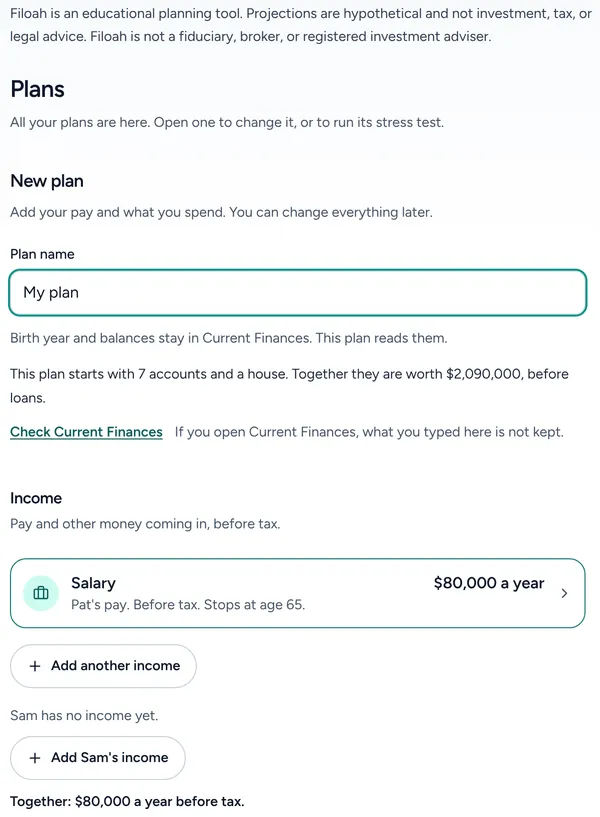

Good to know
- Each plan keeps its own income, spending and life events. Changing one plan does not change another.
- Every plan shows in the Plans list, with how long its money lasts.
- A free account has room for 2 plans. A Plus account has room for 10 plans.
Still stuck? Email support@filoah.com.